Want to create a shortcut
on your Desktop
to launch MiDrive?
As
we all know working with USB Storage is extremely easy and
flexible. However, one of the challenges faced with USB
devices
is that Windows
can, and will, assign different drive letters each time the device is
attached; making it difficult to create ‘permanent’
shortcuts to access files or applications on the device.
For those
of us that
want to launch MiDrive from our desktop, this creates a unique
challenge. Below is an outline of the process to
overcome
this issue, and create a ‘permanent’ shortcut to
launch the
MiDrive application by assigning a permanent drive letter to your
MiDrive.
*note – the steps below
are based on Windows
Vista, however they are
very similar if you are running Windows
XP.
1. Plug in your MiDrive
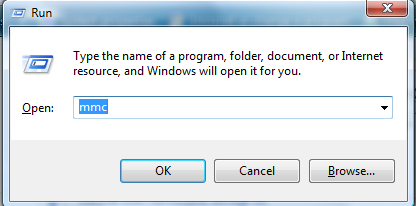
2. Open the Microsoft Management Console (mmc)
Go to Start >
Run
Type
"mmc" in the box
and hit enter. (Click continue if prompted)
3. Create/Add a "Snap-in" to create a permanent drive letter
for
your MiDrive
In the Microsoft
Management Console
Select
File > New
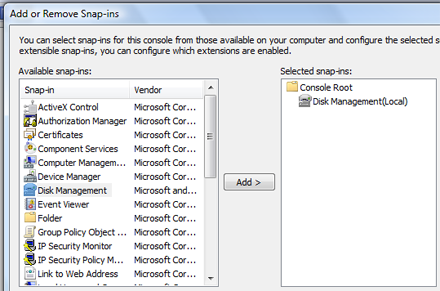
Select
File >
Add/Remove Snap-in…
Select
“Disk
Management” and click “Add”
Select
"OK"
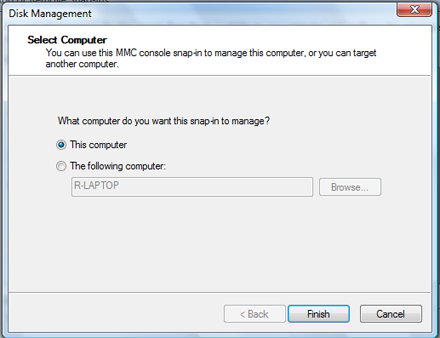
Select
"This
Computer" and hit "Finish"
Select
“OK” on the “Add or Remove
snap-ins” screen.
4. Create the permanent drive letter
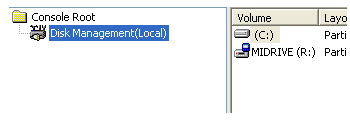
Select “Disk
Management”
from the left menu.
You
will now see
MiDrive in the right panel
Right click on your
MiDrive and select “Change Drive Letter and
Paths…”
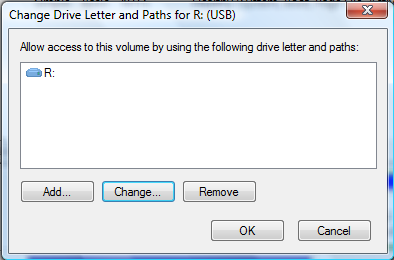
Select
“Change…”
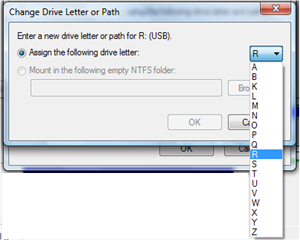
Select
a permanent letter (preferably a letter that appears later in the
alphabet)
Select
“OK”
*note
- It will warn you about making the chhange – there
is
little chance programs you use will be affected by this. If they will,
you will probably already be aware of this so don’t worry.
Select
File > Save
and save the file in the default directory.
Close
the Console
After
you complete
the steps above, unplug your MiDrive and plug it back
in.
It
should now have the drive letter you assigned above.
Finally,
to create a shortcut, use My Computer to browse to your MiDrive, right
click over the MiDrive.exe file and Select Send To > Desktop
(create
shortcut).
We
hope
this information was helpful. As always please contact support
should
you have any further questions related to this topic.
Regards,
The MiDrive Team
Got a Tip
or Request
for a Tip?
Please Go
to the Tips Page
on
MiDriveSoltuions to submit
Become
a VIP Member